
Early access · Release date: March 24, 2025
UpdatedSchedule I Multiplayer: Co-Op, Saves, and Player Cap
Set up Schedule I multiplayer with friends, learn the four-player limit, share money and items, and understand host saves before starting your co-op game.
Jump to
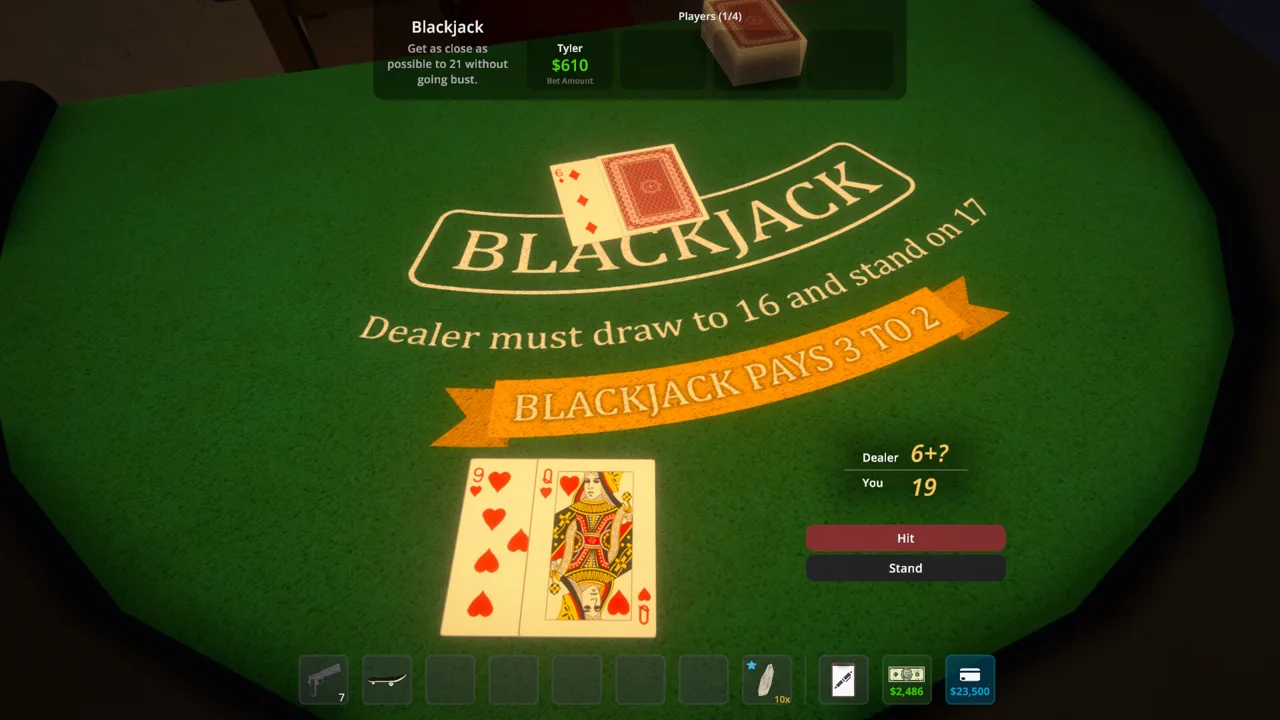
How to Play Co-Op With Friends
Schedule I multiplayer lets up to four players build an empire together through online co-op on Steam for Windows. Invite friends using the plus button in the main menu’s upper-right corner, then play in the host’s save. Choose your host carefully: that player controls saving, and friends depend on them to resume the world.
| Feature | How it works |
|---|---|
| Maximum lobby size | 4 players, including the host |
| Supported PC platform | Windows |
| Multiplayer mode | Online Co-op |
| Controller support | Full controller support |
| Shared finances | Bank balance is shared; pocket cash is individual |
| Saving | The host saves the game |
To get your group together:
- Add your teammates as friends on Steam.
- Launch Schedule I through Steam.
- Find the lobby area in the upper-right corner of the main menu.
- Select the plus button and choose the friend you want to invite.
- Have your friend accept the invitation, then start or continue the host’s game.
You can bring friends into an existing save, so you don’t need to abandon your solo business to start playing together.
The Free Sample demo also supports four-player co-op. Its January 9, 2025 co-op release introduced invitations from both the main menu and pause screen. For the Early Access game, use the main-menu invitation steps above.
How Shared Money, Items, and Progress Work
Your crew works toward the same business, but money behaves differently depending on where you keep it.
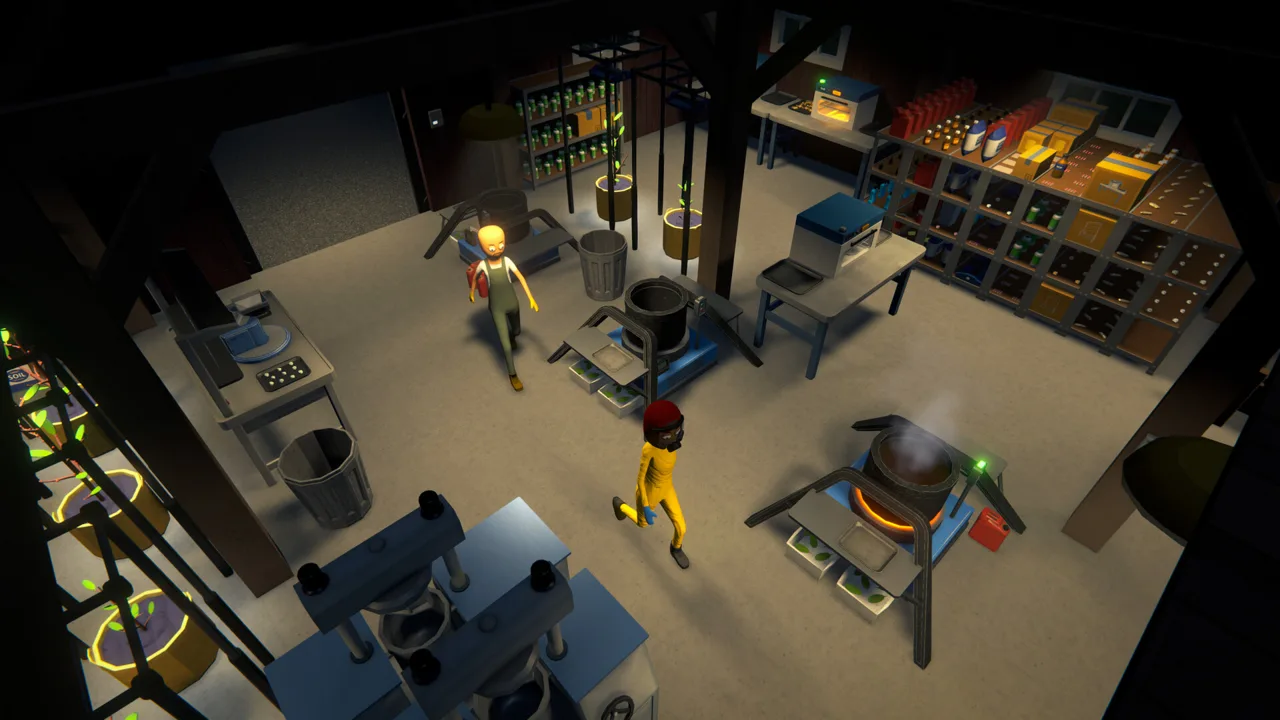 Image: Steam / TVGS
Cash in your pockets belongs to you. Money deposited into the bank becomes shared. Other players can spend from that balance or make deposits without standing beside the host.
Agree on major purchases before using the account. If someone is saving for equipment while another teammate buys a vehicle, both purchases draw on the group’s available bank funds.
Inventory stays separate, too. To pass a tool or supplies to another player, place them in shared storage and let your teammate pick them up. A watering can sitting in your inventory won’t help the friend waiting beside the plants.
Progression follows the host’s world:
- Players share the host’s XP progression.
- Customer deal messages are shared between players.
- Money and progress do not transfer between separate saves.
Call out which customer you’re handling before leaving for a deal. Shared messages make coordination useful, especially when teammates are working in different parts of Hyland Point.
Who Owns the Save, and Can the Host Play Alone?
The host owns the multiplayer world and controls saving. Joining a friend’s business does not create a separate single-player copy of that world on your computer.

The host can keep playing after guests leave, then invite them back into the same save later. Guests depend on the host to reopen that world for another session.
Choose the teammate with the most compatible schedule to host. If one person regularly plays longer than everyone else, let that person run the save so they can continue managing the business between group sessions.
Keep a separate personal save if you also want an independent campaign. Earnings from your own world won’t carry into your friend’s business, and co-op earnings won’t transfer back.
Only the host can use console commands in the co-op save. Coordinate any command use with the group, and have the host save before everyone signs off.
Multiplayer Fixes Through v0.4.7
Updates have addressed joining, synchronization, and problems that affected guests differently from hosts. The October 9, 2026 v0.4.7: Special Customers update includes another multiplayer synchronization fix.

| Update | Multiplayer change |
|---|---|
| v0.4.7 — October 9, 2026 | Fixed thrown physics props falling out of sync |
| v0.4.6f13 — August 14, 2026 | Fixed non-host players taking damage twice from NPC melee attacks |
| v0.4.6f13 — August 14, 2026 | Fixed the missing respawn button in multiplayer sessions with only 1 player present |
| v0.4.6f12 | Fixed users joining a multiplayer game without being friends with the host |
| v0.4.1f12 — November 18, 2025 | Added a network replication queue to stagger data sent when a player joins |
The friendship requirement matters when organizing a lobby: add everyone to the host’s Steam friends list before sending invitations.
Controller support arrived in v0.4.6. Supported devices include Xbox controllers, PS5 DualSense controllers, and the Steam Controller, including Steam Deck controls. The supported native PC platform remains Windows; controller compatibility describes how you control the game.
You can get Schedule I on Steam to access the Windows version and its online co-op features.
What to Do When a Friend Cannot Join
Start by checking the lobby setup:
- Confirm the host and guest are Steam friends. The game’s joining restrictions require that connection.
- Count everyone in the lobby. The four-player limit includes the host.
- Send a fresh invitation from the main menu. Use the plus button to select the intended teammate.
- Check everyone’s installed version and selected branch. Coordinate updates before troubleshooting an older build.
Take care when switching between beta and default branches. The v0.4.7 Open Beta changed how character appearances are saved. Loading an existing save in that beta converts legacy appearances, and those converted appearances will not load properly when switching back to the older default version.
For save failures, follow any file-writing permissions instructions displayed in the main menu. For a persistent loading or synchronization problem, use Settings → Other → export player.log to collect the game log for troubleshooting.
Divide the Work Without Duplicating It
Split responsibilities around the tasks your business already needs. Have one teammate manage production while another packages stock and another handles customer deliveries. With four players, assign the remaining person to restocking or checking employee routes.
Use designated storage for tools, supplies, and finished goods. Rename racks and stations with the management clipboard so teammates can identify the right destination without searching every container.
Once employees take over routine work, inspect the production chain together. Follow items from their supply rack through each workstation to the finished-product shelf, and fix any missing transfer route before expanding. Keep doorways and working areas clear so your crew and employees can reach the equipment.
Continue with
 Schedule I PS5: Release Status and Controller SupportLooking for Schedule I PS5 news? Get the console release status, learn what DualSense support means, and find the Windows PC version you can play today.
Continue exploring

Schedule I Special Customers: Groups and Profit Guide
Meet Schedule I special customers, learn what each group buys, plan for each visit, and improve bulk payouts with matching effects and smarter production.
Schedule I Production Guide: Bungalow to Automation
Use this Schedule I production guide to plan your bungalow, assign employees, connect mixing stations, and fix bottlenecks before expanding your operation.
Join the community
Official channels for news, updates and player help: